A power supply fan that suddenly falls silent can look like a failure. Sometimes, it is normal. Many modern PSUs use zero-RPM or hybrid fan modes, keeping the fan off during light loads and switching it on as temperature rises. A quiet desktop alone does not confirm a fault.
So, why does a power supply fan stop running suddenly? The answer may involve normal fan control, low system demand, dust buildup, a blocked intake, overheating protection, or a worn fan. The details matter. A stopped fan paired with burning smells, unexpected shutdowns, or an unusually hot PSU needs immediate attention. Do not open the power supply; internal components can remain hazardous even after it is unplugged.
Industry evidence helps set the context, but it should not be overstated. Uptime Institute’s 2024 Annual Outage Analysis identifies power problems among the leading causes of serious data-center outages. It does not say a stopped PSU fan caused those incidents. Cybenetics’ PSU testing database also provides efficiency and noise measurements that help readers compare tested models, though one test cannot diagnose a fan in your computer. This guide uses those sources as context, alongside practical troubleshooting steps. It will distinguish expected zero-RPM behavior from warning signs, explain safe checks, and show when replacement or professional service is sensible. One limitation remains: fan behavior varies by model, load, and temperature, so a single symptom rarely tells the whole story.
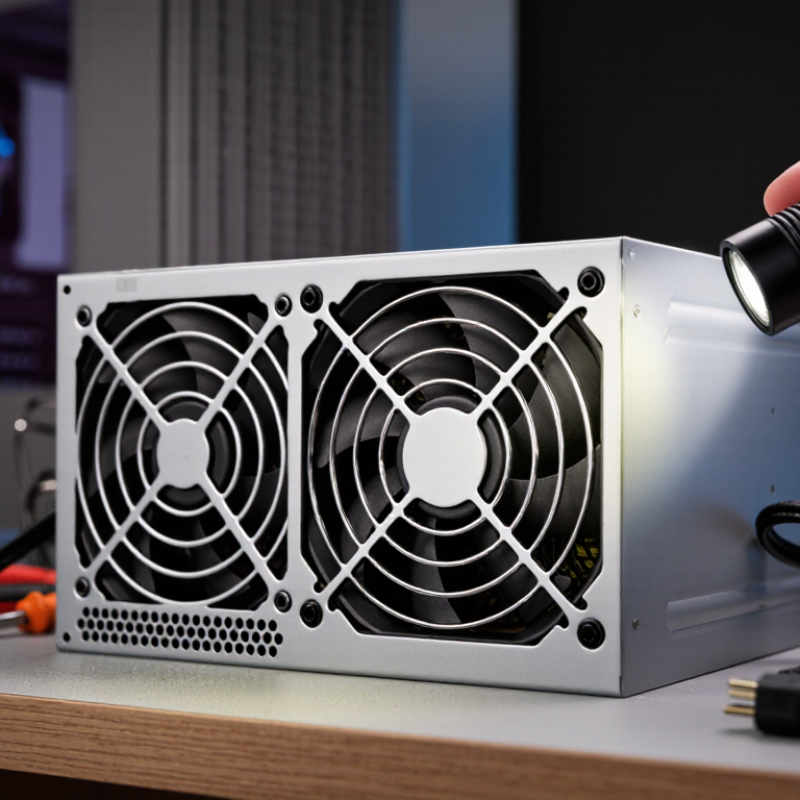
Why Does a Power Supply Fan Stop Running Suddenly in 2026?
A power supply fan may stop because many modern units adjust fan speed to temperature and electrical load. At low load, the fan can pause completely. This is often normal, not a failure. When the unit gets warmer, its control circuit should start the fan again. A sudden stop under heavy use is different. Dust around the intake, a worn fan bearing, or a control fault may prevent steady airflow. A faint click or rattling sound can offer a clue, but it cannot confirm the cause.
Check whether the fan starts during demanding tasks, and make sure the intake vents are clear. Avoid repeatedly switching the computer on and off to test it. If the power supply feels unusually hot, smells burnt, or makes persistent noises, shut the system down and seek qualified service. Never open the power supply; internal components can retain dangerous electrical charge even after it is unplugged. It is easy to mistake a quiet fan for a broken one, so observe its behavior under normal conditions before drawing conclusions.
Tips: Keep several centimeters of space around the vents, and remove surface dust with the system powered off. Note the workload and temperature when the fan stops. That detail can help a technician distinguish normal fan control from a developing fault.
A stationary power-supply fan is often normal. Many modern units use a zero-RPM mode: below a model-specific temperature or load threshold, the fan stays off to reduce noise. When the PSU warms up, it starts slowly, then speeds up as heat rises. After cooling, it may stop again. This pause is intentional. Control logic may also use a delay to prevent rapid start-stop cycling, though the exact behavior varies by design.
Cybenetics’ PSU certification reports publish efficiency and noise measurements across operating loads. Those measurements help show that fan noise can change with workload, but they do not define one universal fan-stop threshold. A quiet fan at desktop idle can therefore be normal, while the same behavior under sustained heavy gaming may deserve attention. Room temperature, blocked intake vents, and dust can all affect cooling. The detail is easy to miss.
Tips: Check the PSU manual for its fan-mode description, and keep the rear grille clear. Listen for grinding or repeated clicking. If the unit becomes unusually hot or shuts down, stop using it and seek qualified service. Do not open the PSU; internal components can retain dangerous charge.
Normal fan-stop modes in modern power supplies
A fan stopping at low load or temperature can be normal: zero-RPM control keeps it off until cooling is needed. Many designs use separate start and stop thresholds (hysteresis) to prevent frequent cycling. Exact thresholds vary by power-supply design; persistent overheating, unusual noise, or failure to restart may indicate a fault.
A power supply fan that stops suddenly is not always failing. Many units use temperature-controlled or zero-RPM operation, so the fan may pause when the computer is cool or under light load. That can be normal. Check whether it starts during a demanding task, such as a game or rendering session, and listen for steady airflow rather than judging by idle behavior alone. The exact start-up temperature varies by design, so the manual is a useful reference.
Dust, a blocked intake, or a failing fan can also cause unexpected stops. Look for lint on the power supply grille and make sure the case is not pressed against a wall. A worn bearing may produce rattling, scraping, or uneven spinning before the fan quits. A loose internal connection or control fault is possible too, though it is harder to confirm from outside. In practice, a brief stop can be easy to misread; repeated stopping under heavy load, unusual heat, or a hot-electronics smell deserves attention. Shut the computer down and unplug it before cleaning exterior vents. Never open the power supply casing, since internal components can retain dangerous voltage. If airflow does not return under load, have the unit inspected or replaced by a qualified technician.
A power supply fan that stops spinning is not always faulty. Some units keep the fan still during light use, then start it as temperature or workload rises. Check the manual for this behavior, and observe the fan through the grille while the computer runs normally. A brief stop can be normal. Repeated clicking, grinding, overheating, or unexpected shutdowns deserve attention.
Tips: Turn the computer off and unplug it before checking the exterior vents. Let the unit cool. Use a flashlight to look for heavy dust, and clear only the outside grille. Never insert tools or fingers, and never open the power supply; internal components can retain dangerous voltage.
Make sure the computer has clear airflow and that nearby vents are not blocked by a wall or loose cables. If the fan remains still during sustained use, or you notice a burning smell, stop using the computer and have the unit inspected by a qualified technician. Avoid repeated stress tests to “see what happens.” A quiet fan alone is weak evidence, and guessing can make a small problem worse.
| Observed condition | Possible explanation | Safe check | Recommended action | Safety level |
|---|---|---|---|---|
| Fan is still while the computer is idle or under light use | Some power supplies use a zero-RPM or semi-passive mode and stop the fan below a temperature or load threshold. | Check the power supply manual for its fan-control behavior. Observe whether the fan starts during normal, sustained computer use. | If the system is stable and the power supply is not unusually hot, the stopped fan may be normal. Do not force the fan to spin. | Low, if operation is otherwise normal |
| Fan does not start during sustained use, and the power supply becomes unusually hot | Possible fan failure, obstructed airflow, or excessive internal temperature. | Shut the computer down and unplug it. Check externally for blocked vents, dust buildup, or insufficient clearance around the intake and exhaust. | Keep the power supply unplugged if overheating continues. Arrange professional inspection or replacement; do not open its casing. | High |
| Fan starts and stops repeatedly while the computer is running | Temperature may be crossing the fan-control threshold, or airflow may be restricted. A worn fan or control fault is also possible. | Check external ventilation and note whether the cycling occurs only during light use or also during sustained workloads. | Clear external obstructions while the system is off and unplugged. If cycling is accompanied by excessive heat, noise, or shutdowns, stop using the computer and seek service. | Moderate to high |
| Grinding, scraping, rattling, or clicking comes from the power supply | The fan may have a worn bearing or may be contacting debris. The sound may also indicate another internal fault. | Listen from outside the case. Do not insert tools, fingers, or compressed-air nozzles through the power supply grille. | Shut down and unplug the computer if the noise persists. Have the unit inspected or replaced by a qualified person. | High |
| Computer shuts down unexpectedly, smells burnt, or shows visible smoke | A serious power supply, electrical, or overheating fault may be present. | Do not continue testing or restart the computer. If safe, switch off the outlet or unplug the power cord without touching damaged parts. | Stop using the system and arrange qualified service. If there is active smoke or fire, move away and contact local emergency services. | Critical |
| Fan does not spin after the computer has been moved or cleaned | An external vent may be blocked, the power cord may be loose, or a cable may be obstructing airflow. Internal damage is also possible. | With the computer off and unplugged, inspect the exterior vents and confirm the power cord is firmly connected. Do not remove the power supply cover. | Correct only external obstructions or loose external connections. If the fan remains stopped when cooling is needed, stop use and seek service. | Moderate |
Safety note: A power supply can retain hazardous electrical charge even after it is unplugged. Never open the power supply, touch internal components, or attempt an internal fan repair. When in doubt, stop using the system and consult a qualified technician.
A power supply fan may stop because the unit is cool enough to run silently; some models use temperature-controlled fans. A sudden stop under heavy load, repeated clicking, overheating, or a burning smell is different. Dust can block the grille, while a worn bearing or failed fan-control circuit may also be responsible. Dust matters.
Shut the computer down and unplug it before checking the power supply’s external vents. Look for a cable or loose debris blocking airflow, and clean the grille gently with a soft brush. Do not open the power supply. Internal capacitors can retain a dangerous charge, even after unplugging. If the fan remains still during demanding use, or the unit becomes unusually hot, stop using it and seek qualified service. Depending on the fault, repair may involve replacing the fan or control circuit; replacing the entire unit can be safer when internal damage is uncertain.
Preventive care is simple but easy to neglect. Keep the case’s intake and exhaust areas clear, clean dust filters regularly, and avoid placing the computer against a wall or on thick carpet. Check that the room has adequate airflow, especially during long gaming or rendering sessions. Listen for new rattling or grinding sounds. They can appear gradually, then worsen quickly. Cleaning helps, but it cannot restore a damaged bearing, and a brief inspection may miss an intermittent fault.
Many modern units use zero-RPM mode. The fan may stay off under light load and start as heat rises. This can be normal.
It depends on the unit’s temperature and load settings. There is no universal threshold. Check the manual.
Sustained gaming creates more heat, so a motionless fan may deserve attention. Check airflow and other symptoms; workload alone does not prove a fault.
Repeated clicking or grinding deserves attention. A quiet fan alone is weak evidence. Easy to overread.
Turn off and unplug the computer, then let the unit cool. Use a flashlight to inspect the grille. Clear exterior dust only; keep fingers and tools out.
Yes. A nearby wall, loose cable, or dusty rear grille can restrict airflow. Keep the vents clear.
Stop using the computer and seek qualified service. Do not open the power supply; internal parts can retain dangerous charge.
No. Repeated tests may worsen a problem. It is tempting to guess, but a still fan alone tells you little.
This article explains how power supply fans regulate temperature and why their operation may change over time. Some modern power supplies use a normal fan-stop mode, keeping the fan idle when the unit is cool and starting it only when additional cooling is needed. If the fan stops unexpectedly, however, possible causes include dust buildup, a blocked airflow path, worn fan bearings, a loose connection, overheating, or a fault in the power supply’s fan-control circuitry. Understanding these possibilities helps answer the question, “why does a power supply fan stop running suddenly,” without assuming that every silent fan indicates a failure.
The article also outlines safe ways to diagnose the problem, such as checking ventilation, listening for unusual noises, and observing whether the fan starts as the power supply warms up. It emphasizes avoiding direct contact with internal components and seeking qualified assistance when a fault is suspected. Depending on the cause, solutions may include cleaning accessible vents, improving airflow, or having the unit inspected or replaced. Regular dust removal and adequate ventilation can help reduce the chance of future fan problems.

Sowest Electric